
The WWW and Non-WWW Versions Indexed
Explanation & Implementation Guide
Explanation
When both the www (e.g., www.example.com) and non-www (e.g., example.com) versions of your site are accessible, it can lead to duplicate content issues. Search engines might interpret these as two separate websites, causing confusion and splitting link equity. This can dilute your SEO efforts and negatively impact your site’s rankings, as search engines may struggle to determine which version to prioritize in search results.
Implementation Guide
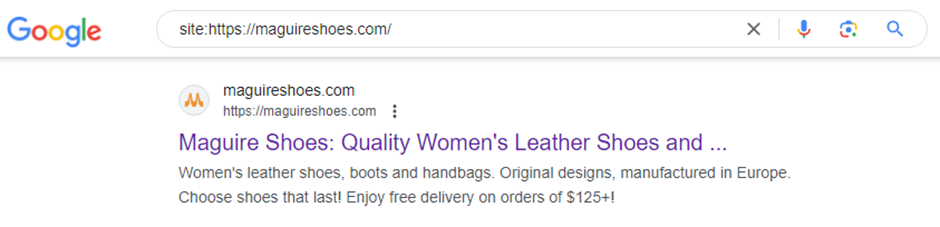
Check Google Search Results:
- Perform a site:yourdomain.com search on Google.
- Look for instances where both the www and non-www versions appear in the search results.
Analyze the Exported Data:
- Open the CSV file and filter URLs to find those containing product variant parameters (e.g., size, color).
- Identify URLs that show similar content with only variant attribute differences.
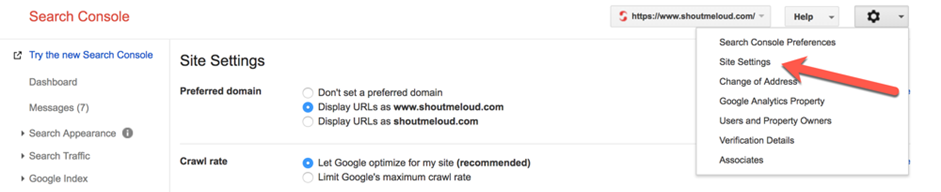
Use Google Search Console:
- Log in to Google Search Console.
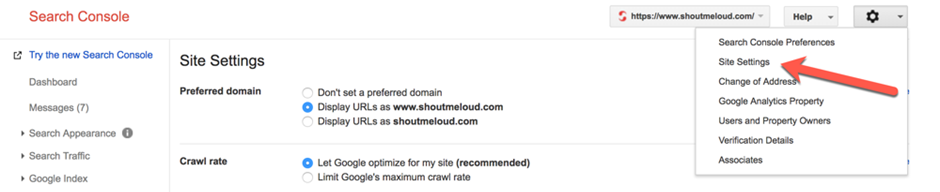
- Navigate to Settings under “Domain” and configure your preferred domain (either www or non-www).
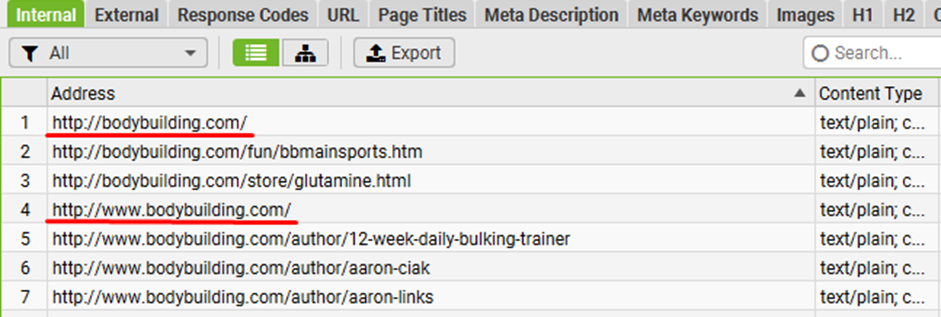
Crawl Your Site with Screaming Frog:
- Download and run Screaming Frog SEO Spider.
- Crawl your site and review the Internal tab to identify URLs that exist in both www and non-www formats.
Fixing the Issue
Choose a Preferred Domain:
- Decide whether to use www or non-www as your preferred version.
- Consider factors like branding consistency, user preferences, and existing external links.
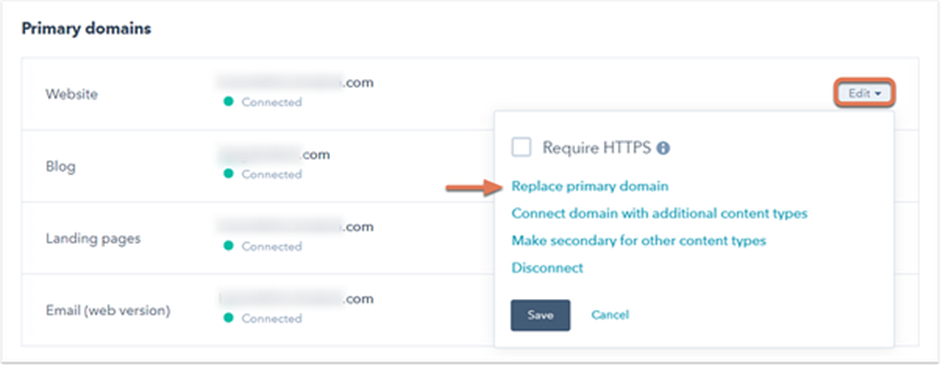
Update Shopify Settings:
- Log in to your Shopify admin dashboard.
- Go to Online Store > Domains and select your preferred domain (www or non-www).
Implement 301 Redirects:
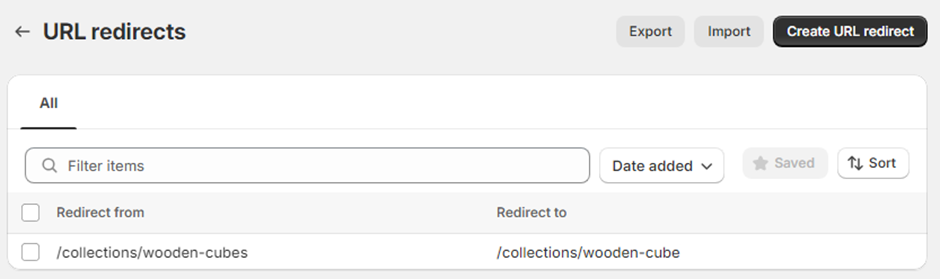
- Redirect traffic from the non-preferred version to the preferred version using a 301 redirect:
- Use Shopify’s built-in settings for domain management.
- Alternatively, update your .htaccess file if applicable.
Update Google Search Console:
- Re-submit your sitemap with the updated domain preference in Google Search Console.
- If switching between www and non-www, use the Change of Address tool to notify Google of the update.
Update Internal Links:
Review and update all internal links in your Shopify store to ensure they consistently use the preferred domain.
Address External Links:
Reach out to external websites linking to the non-preferred version and request updates to point to the preferred domain.
Add Canonical Tags:
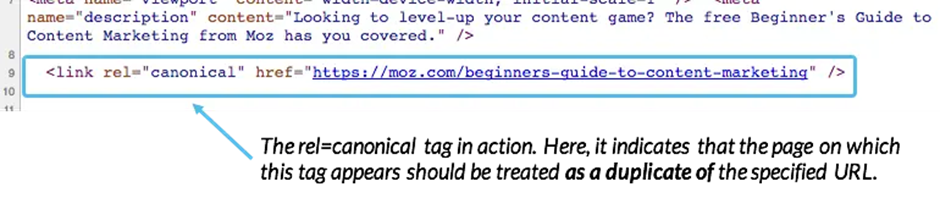
Use canonical tags to indicate the preferred version of a page if both versions exist temporarily: html Copy code <link rel=”canonical” href=”https://www.example.com/”>
Verify Redirects:
Use tools like Screaming Frog or an online redirect checker to confirm that all non-preferred versions correctly redirect to the preferred domain.
Monitor Google Search Console:
- Regularly check Google Search Console for crawl and indexing issues.
- Ensure that only the preferred domain appears in search results over time.
Leave a Reply